—

Compare Items, Gear Swap & Item Value

Compare one equipped slot, test several slots together, and decide whether an Auction House listing or an owned spare is worth its mesos.

Covers Compare Items, Gear Swap Simulator, Item Value & Inventory

Which tool for which question

All three tools score candidates against your active character, so keep Gear current first.

  1. Compare items settles "which item is better in one equipped slot", including items you do not own yet.
  2. Gear swap simulator settles "what if I change several slots together".
  3. Item value & inventory settles "is this listing or the spare I own worth it".

If your power score is paused, each page shows the reason; see When the score is paused.
Compare one slot

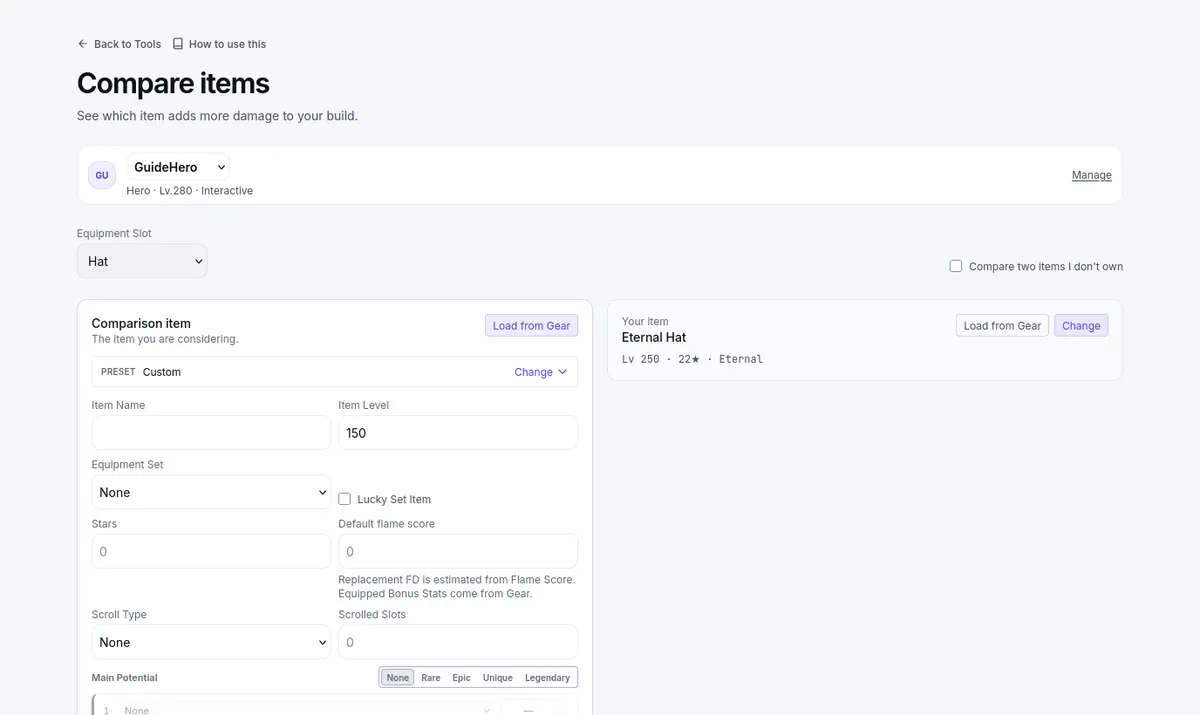
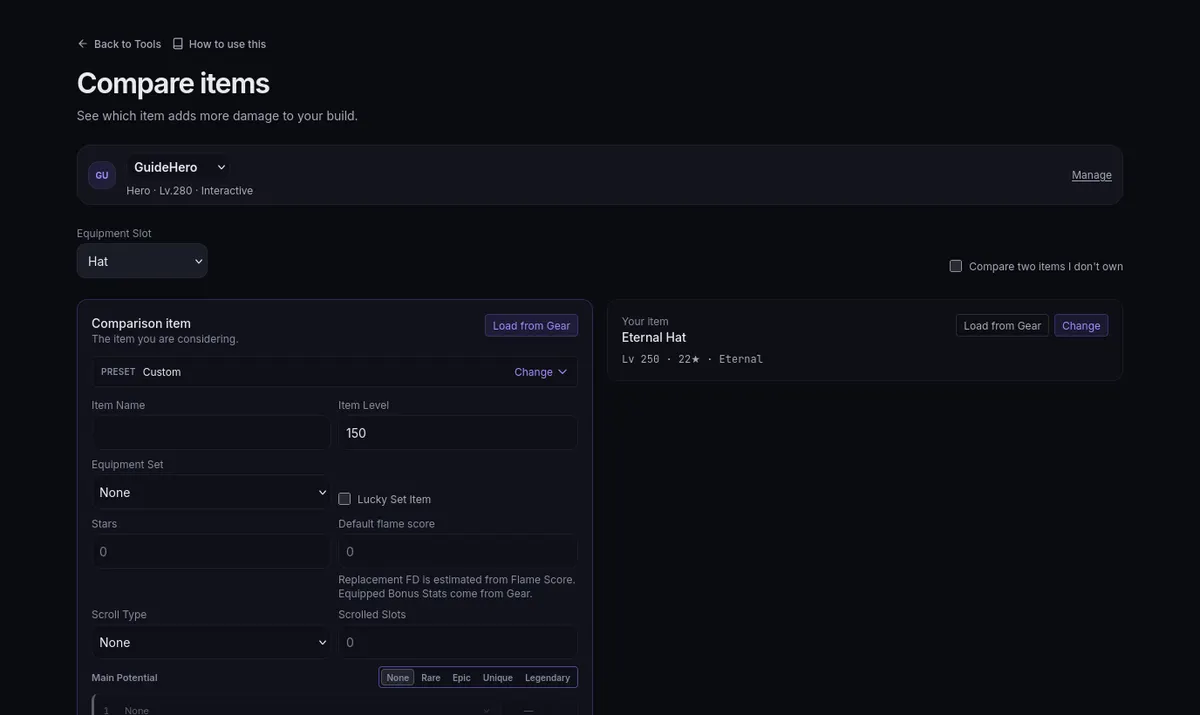
Open Compare items and pick the Equipment Slot.

Compare items: pick a slot, then fill in the comparison item beside the item you haveCompare items: pick a slot, then fill in the comparison item beside the item you have

  1. Your current piece sits on the Your item card as the baseline; Load from Gear pulls it in and re-reads it after changes, and Change lets you edit it. If the equipped item is missing details the card says Equipped item needs details and nothing is assumed in its place.
  2. Type the candidate onto the Comparison item card. Compare involves no price — the question here is damage, not mesos.
  3. Tick Compare two items I don't own instead when the slot is being fought over by two candidates.
  4. Read the Final Damage result and the warnings. A warning names what it could not use from what you typed; fix that entry and read again.

Gear Swap: several slots at once

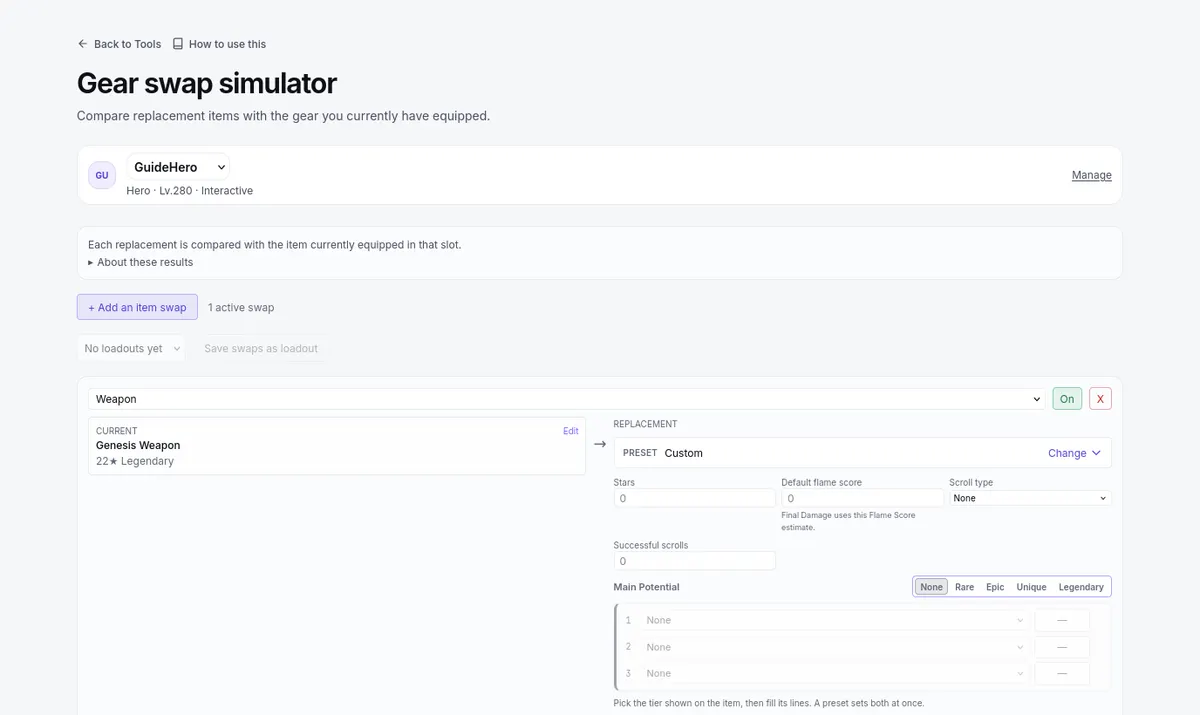
The Gear swap simulator tests a group of changes together.

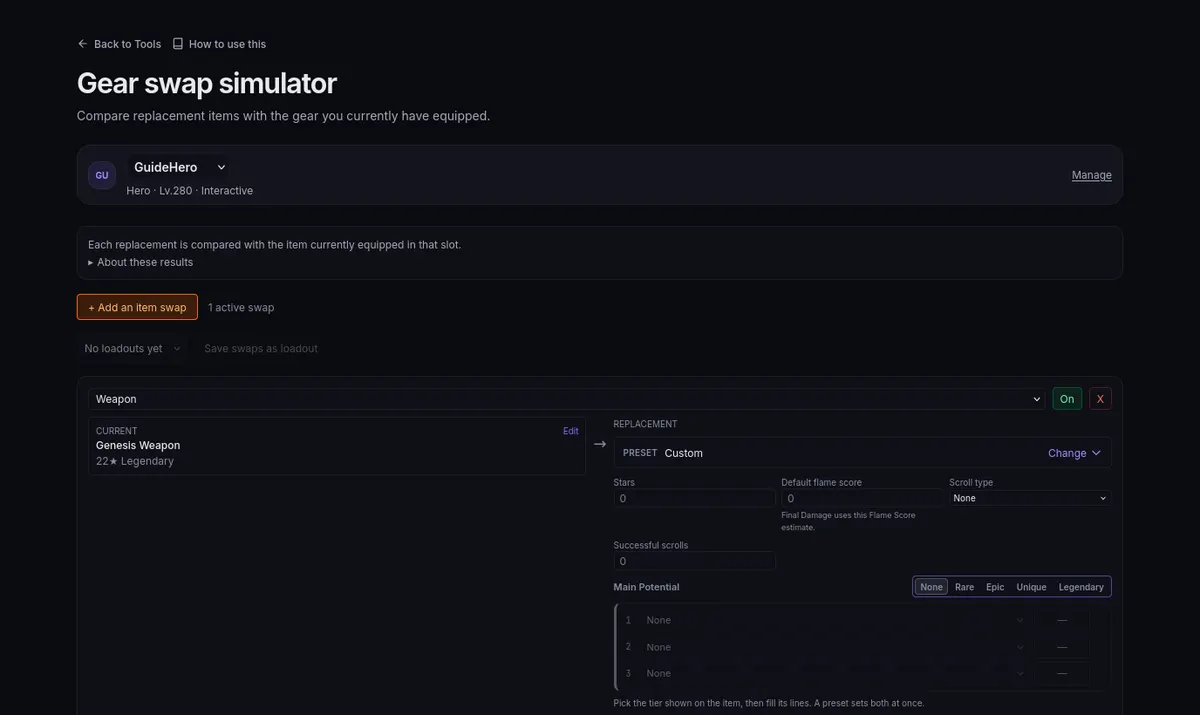
Gear swap simulator with one swap: the weapon you wear on the left, the replacement to fill in on the rightGear swap simulator with one swap: the weapon you wear on the left, the replacement to fill in on the right

  1. Add each idea with + Add an item swap and fill in the item you would put in that slot.
  2. Switch individual swaps On or Off to try combinations without deleting entries.
  3. Read the Equipped gear row against the Combined swap row — the loadout as a whole.
  4. Save swaps as loadout keeps the equipped gear with these swaps applied as a named loadout — a stored alternative in the tracker, not a change applied in game. Load loadout as swaps… goes the other way.

Set effects and other cross-slot rules depend on context, so trust the combined result instead of adding up each swap's separate percentage.

Item value: buy, spares, and worth

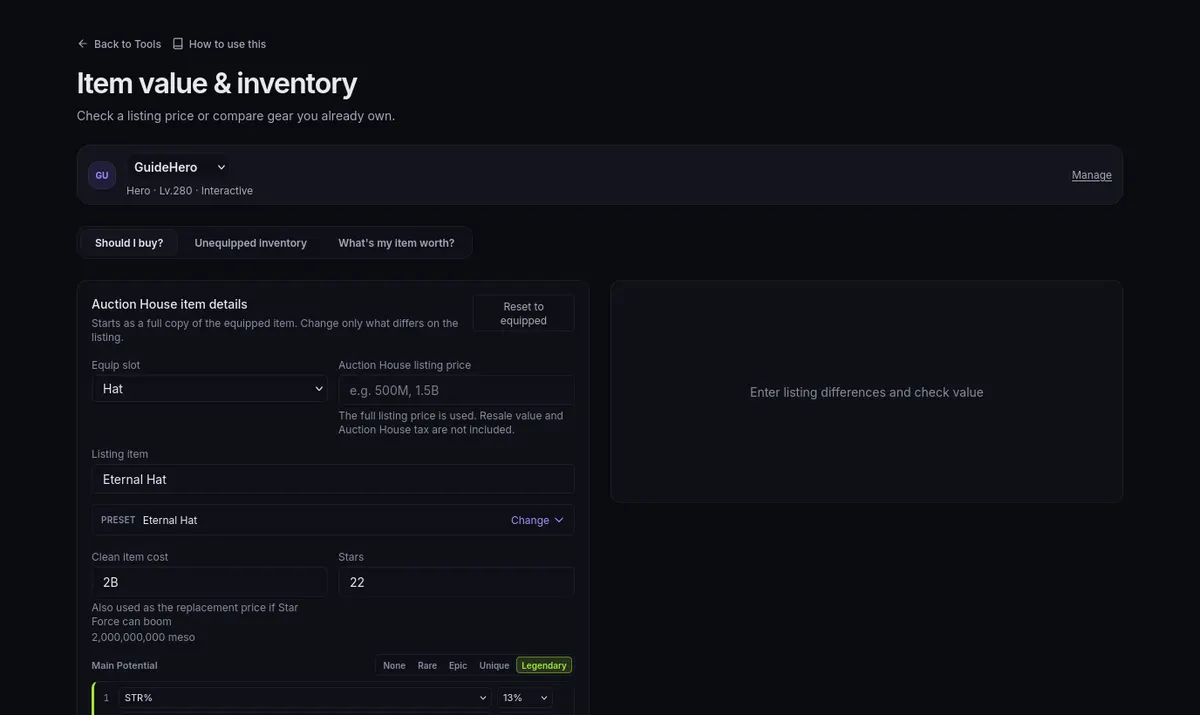
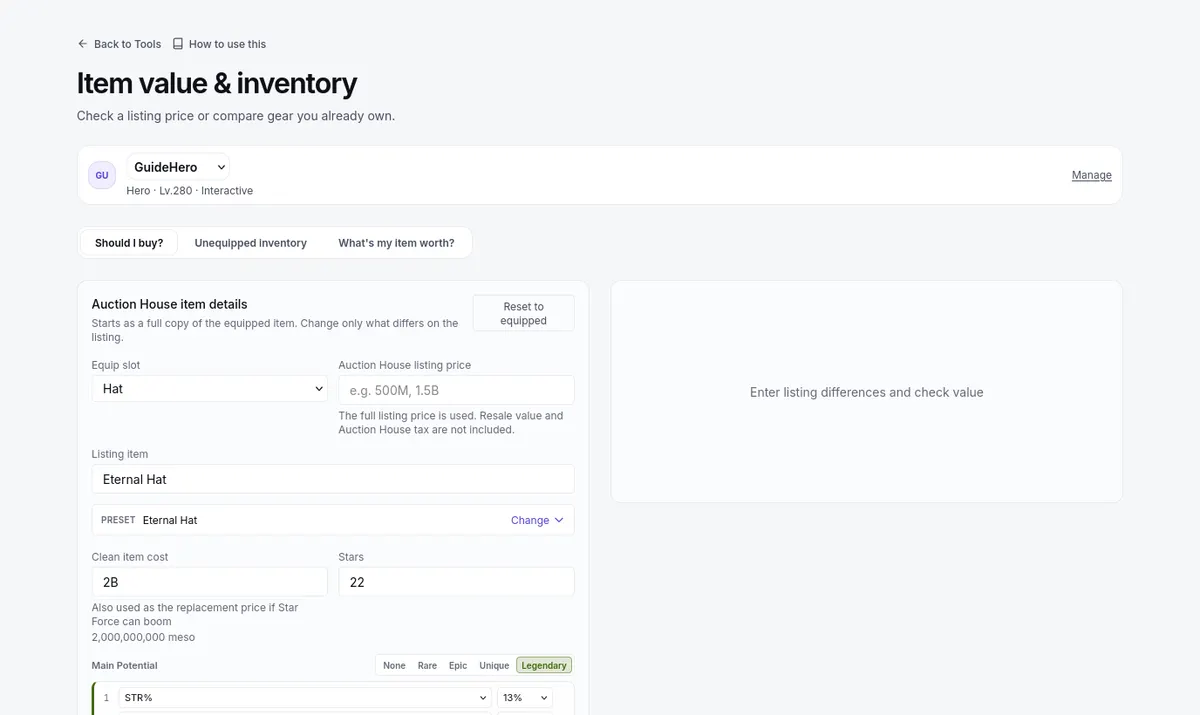
Item value & inventory has three tabs: Should I buy?, Unequipped inventory, and What's my item worth?

Item value on the Should I buy? tab, with the Auction House item details to fill inItem value on the Should I buy? tab, with the Auction House item details to fill in

  1. Should I buy? needs the candidate's actual item state plus its listing price. The result judges that exact listing — Final Damage against the mesos it asks.
  2. Unequipped inventory takes a spare you actually own, shows the swap-in change, and connects suitable spares to your recommendations.
  3. What's my item worth? reports a valuation beside a crafting-cost estimate — what making the item would cost you under your Settings, not the live Auction House price or a fair-market promise.
  4. Mind your world type before planning around a listing: Heroic has no Auction House, so there only Unequipped inventory is available.

Set your prices in Settings, enter the candidate item state in the tool, and keep the equipped baseline current on Gear.

Common mistakes

  1. Reading a crafting-cost estimate as the market price.
  2. Summing one-slot percentages when the real question spans several slots — read the Gear swap simulator's combined result instead.
  3. Entering a listing without the real item state and wondering why the buy judgment looks unrelated to the shop item.
  4. Re-evaluating after a gear edit without pressing Load from Gear first.