—

The Planner: turning a ranked list into an order of operations

Pin upgrades from the dashboard, read the plan's cost summary, keep rows current, and record what you actually obtained.

Covers Planner, Dashboard

Pinning upgrades and reading the summary

The Planner (Your upgrade plan) holds the upgrades you have chosen from the Dashboard. On a dashboard row, use Add to planner; the row then shows Tracked. An empty planner says "No upgrades planned yet" with a Go to Dashboard → button to get you started.
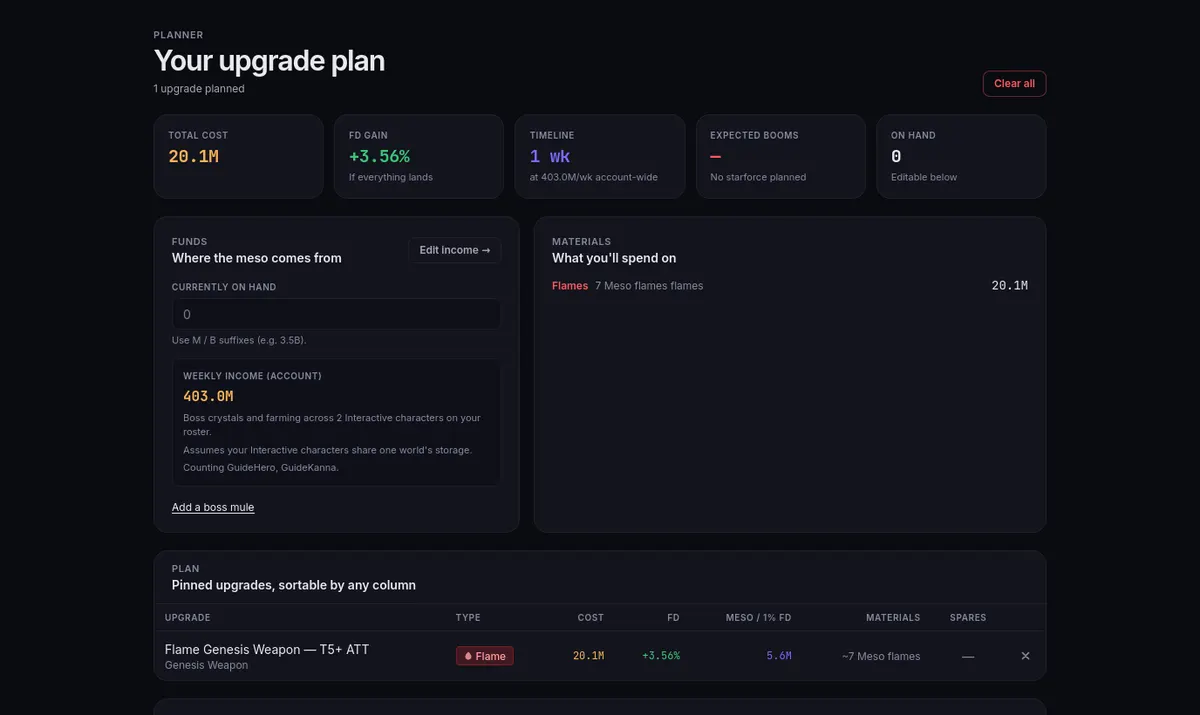
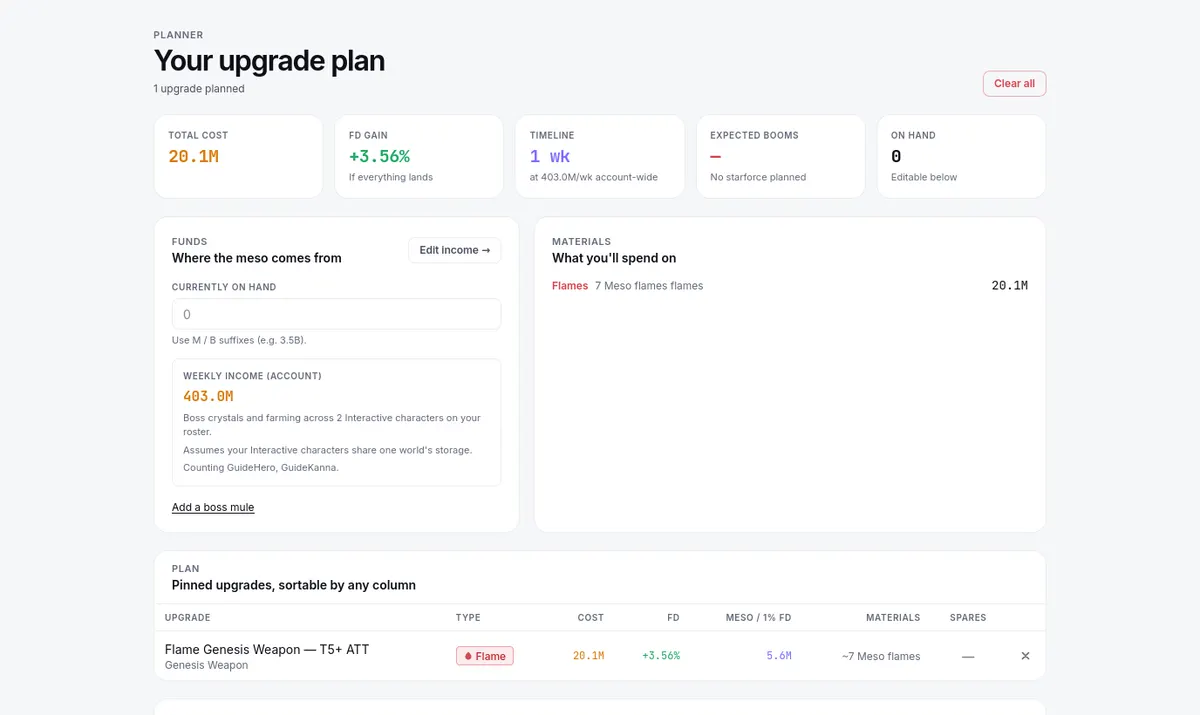
The planner with one pinned flame: total cost, FD gain and timeline across the top, then funds, materials and the plan tableThe planner with one pinned flame: total cost, FD gain and timeline across the top, then funds, materials and the plan table

The summary at the top of the plan reads:

  • Total cost and FD gain ("If everything lands") — the combined effect if every row succeeds as planned.
  • Timeline — how many weeks the plan takes at your recorded weekly income.
  • Expected booms — the plan's expected Star Force destructions.
  • On hand — your meso budget entry (below).

Under Plan, the columns Upgrade, Type, Cost, FD, Meso / 1% FD, and Materials are sortable, so you can order the list whichever way you are shopping. A Spares column lets you set spare copies on Star Force rows, and Clear all empties the plan. Weekly sequence at the bottom orders your pinned upgrades into a 12-week budget plan.

Planned, done, and stale rows

A planned row is an intention; only a row you have marked done reflects something you own. Rows keep the cost and FD they were pinned with. If the site later corrects its pricing for that kind of upgrade, the row is marked Stale · excluded, shows the reason, and is left out of every total and the timeline. Every other row stays active.

When a row goes stale: read the reason it shows, remove the old row with its ×, and re-add the current recommendation from the Dashboard. That prices the same idea with current numbers instead of the old ones. Clearing rows you have finished with is normal upkeep, not a mistake.

Marking done

Marking done happens on the Dashboard, where the recommendation lives; the plan then updates itself.

  1. Perform the upgrade in game first — buy, roll, scroll, or cube it.
  2. On the dashboard row, use Mark as done, or the recording option for that row: Record flame, Record roll, Record scrolls, Record lines, or Record stars on a tracked Star Force row. Star Force rows also have Track up to… to pin a further star target. The choices depend on the row type.
  3. Enter the result you actually obtained. A random result is not promised to match the plan — enter what you really hold, even if it is worse or cost more.
  4. The row leaves the plan, and the next recommendation takes over.

The recorded state becomes part of your build, so the following recommendations price against your new reality.

Budget: on hand and weekly income

Two budget inputs shape the plan:

  1. Currently on hand — your meso budget right now. Shorthand is accepted: 3.5B or 500M both work.
  2. Weekly income (account) — your estimated weekly earnings, edited with Edit income →, which opens the income configuration.

The income estimate includes your roster of characters; the planner assumes the characters of one world type share one world's storage. The page lists which characters were counted and marks any saved income it could not match as "Not budgeted", so you can see what the number covers. If a weekly total looks wrong, correct the boss and farming configuration feeding it rather than editing the plan.

Resources beyond meso

Meso is not the only currency: the Characters page ranks which of your characters should receive a resource drop, and HEXA's Priority tab paces node levels against a weekly Fragment and Sol Erda budget.

Keep spare copy counts current on the gear editor (or in the plan's Spares column) — planned attempts involving booms read them when estimating how rough a stretch of upgrades will be. Then run the loop: check income, look at what the plan needs next, perform it in game, and mark it done.